Genuine App Store app Shadow Launch Technology Limited

Shadowrocket Guide:
Get the genuine app and configure routing rules

A rule-based proxy client for iOS / iPadOS; get the genuine app from the App Store. The app is available for a one-time purchase.

Global Routing Config On Demand
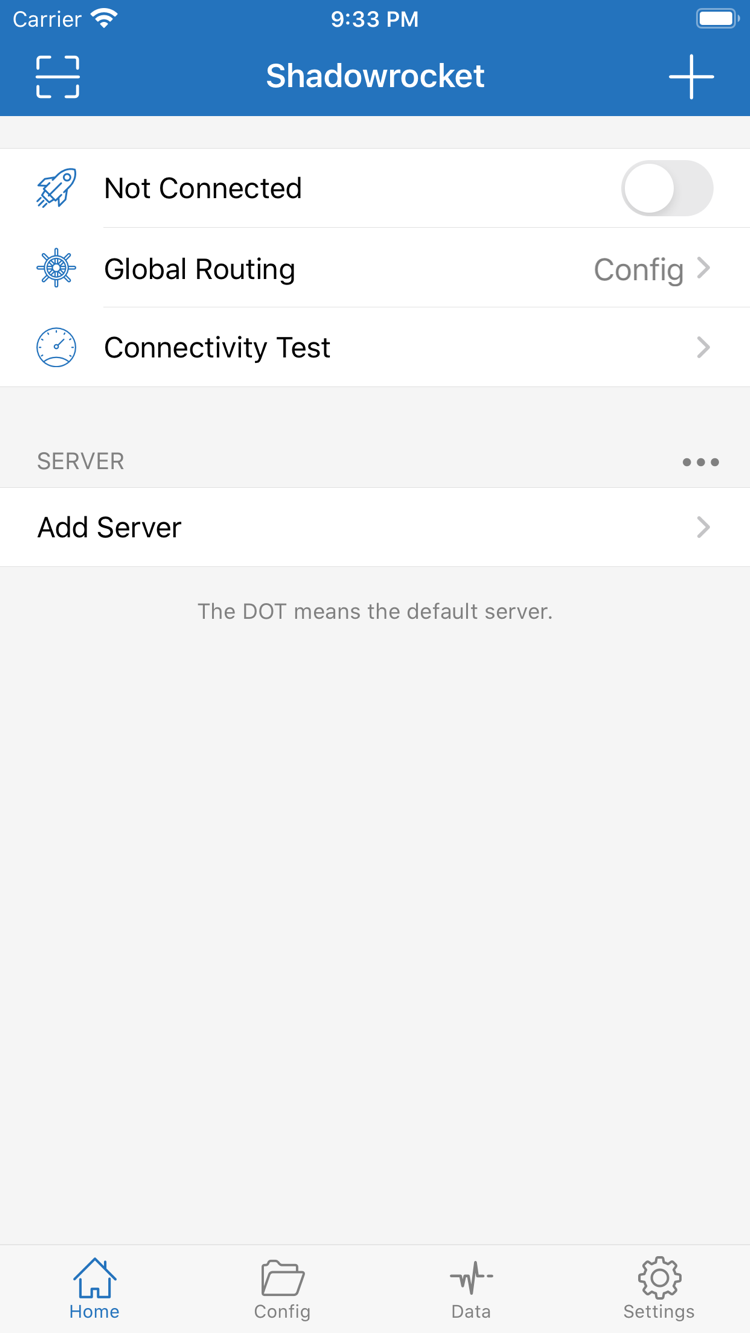
Shadowrocket Home screen screenshot
Shadowrocket · Home screen
Getting the app and opening it for the first time

Get Shadowrocket for iPhone and iPad

Verify the App Store listing before preparing your own server details or subscription. Shadowrocket Guide is the official Shadowrocket manual. Start with purchase and installation, then move on to configuration and connection checks.

iPhone

Verify the app name, developer, and app ID in the App Store before purchasing and installing. On first launch, check the Home screen and import an existing configuration. When connecting, review the prompt to allow VPN configurations. Check the App Store listing for system requirements.

Adding a VPN configuration allows iOS to let the client establish a connection; it does not mean a server is ready to use. If the SERVER list is empty, import a configuration first. Approving the permission prompt does not prove that a server is reachable.

View the iPhone guide

iPad

Use the same Apple ID you used to purchase the app, then check your purchase history and download status in the App Store. Your purchase can be used on iPhone and iPad; check the App Store listing for system requirements and whether the purchase is universal. Check existing configurations on each device.

The larger screen makes it easier to review rules and notes in Config, but the order of checks stays the same: verify the server, select Global Routing, then test the connection. Restoring a purchased app and restoring its configuration are separate steps; one does not replace the other.

View the iPad guide

Shadowrocket is also available in the App Store for Mac and Apple TV. Check the App Store listing for system requirements and whether the purchase is universal.

See how to get the app →
Get it on the App StoreDownload Shadowrocket
How features relate to configuration

Shadowrocket features

Server details determine the connection destination, Global Routing determines how traffic is handled, and rules in Config determine what matches. Understand these three layers before changing settings; keeping other conditions consistent makes troubleshooting easier.

Global Routing and rule order

In Global Routing, Config applies the rules in the selected configuration to determine how connections are handled. Proxy sends traffic through the selected proxy; Direct connects without a proxy. To route traffic by domain or address, select Config and check the rules in order, from top to bottom. More specific conditions generally go before broader ones. FINAL handles traffic that matches no other rule. Rules using PROXY still require an available server; they do not replace server configuration. After making changes, test with a specific destination rather than judging by the toggle alone.

[Rule]
DOMAIN-SUFFIX,example.com,PROXY
IP-CIDR,192.168.0.0/16,DIRECT
FINAL,DIRECT

Domain suffixes, local network addresses, and fallback conditions are handled separately; this is a syntax example.

Read about rules and connections →
Quick-start overview

From import to connection testing

These three steps assume you already have your own server details or subscription. Keep a known baseline configuration, establish a manual connection, and only then refine rules or set up automatic connections.

  1. 01 / Add Server

    Add a server or import a subscription

    In Home, open Add Server. If you have a subscription, choose Subscribe and paste the complete link. To enter details manually, choose the matching Type and fill in the server address, port, and authentication parameters. Save, return to the SERVER list, and confirm the entry appears. Tap the circle next to the server to set it as the default. Seeing a name in the list only confirms that the configuration was saved; test the server to make sure it works.

    If the import is empty, stop retrying and check that the link is complete and has not been cut off by a line break or space. Ask your service provider to confirm the subscription is active. For manual entry, check every field against the original details, especially the port, password, TLS, and transport settings. Do not paste a private subscription link into public feedback.

  2. 02 / Global Routing

    Choose Config, Proxy, or Direct

    Return to Home and open Global Routing. Config applies the rules in the selected configuration; Proxy routes traffic through the selected proxy; Direct connects without a proxy. To use routing rules, also verify which file is selected in Config. Changing Global Routing to Config alone is not enough.

    For initial troubleshooting, stick with one server and one destination, note the selected mode, and observe the result. If Proxy works but Config does not, check the relationship between rules, policies, and DNS rather than immediately reimporting the subscription. If Direct is selected, successful access does not prove that the proxy server works.

  3. 03 / Connectivity Test

    Turn on the connection and test access

    After confirming the default server, turn on the connection and follow the system prompt to allow adding a VPN configuration. Then run Connectivity Test and try to access a specific destination. System connection status, server test results, and actual page access each indicate a different part of the setup. Consider all three to determine whether the configuration is working as expected.

    If the connection times out or access fails after connecting, check the current network, server details, Global Routing, rules, and DNS in that order. Change one setting at a time and test again, noting the results before and after. Set up On Demand only after a manual connection is stable. Enabling several automatic behaviors at once can make it harder to identify what changed the connection state.

View the full guide
App authenticity and purchase details

Verify the App Store listing

Shadowrocket is a closed-source commercial app available exclusively through the App Store. To verify the app, check the developer, official icon, and app ID shown on its store listing. Do not rely on search ranking or a similar name as proof.

  • Developer: Shadow Launch Technology Limited
  • App ID: 932747118
  • One-time purchase

Developer, icon, and app ID

Open the product page and confirm the name is Shadowrocket. Check that the developer is Shadow Launch Technology Limited and compare the listing with the official icon shown here. The id932747118 in the product URL is the app ID. Search results may include apps with similar names or icons, so check all three details together. If any detail does not match, return to the verification page and reopen the App Store link. Do not proceed with a purchase based only on a vague resemblance.

The icon helps identify the app; the developer and app ID provide further confirmation. On the App Store, also review compatibility, price, and purchase details as shown by your current storefront. This manual explains the steps, but whether your device is compatible, the system requirements, and the scope of the purchase should be checked on the App Store listing.

App Store availability and account region

The currency, app availability, and purchase details shown in the App Store depend on your account’s storefront. After opening the link on this page, confirm that the store shows the same app and review its purchase status for your account. If you cannot find it in search, check the product link and store notices first. A missing search result does not prove that the app has been removed from every storefront. Prices on different storefronts are not the same transaction amount.

This guide does not specify a fixed minimum system version. To use Shadowrocket on another device, open the same product page and check the compatibility section for device and system requirements. Review the terms shown in the App Store before paying. Check the listing for details about universal purchase and applicable terms.

One-time app purchase versus server service

Buying the app ≠ buying a server plan. Shadowrocket’s one-time purchase is for the client app; it does not provide server or subscription details. The US storefront reference price is $2.99. Other storefronts show local currency, and the App Store listing shows the actual price. This site does not provide, sell, or recommend servers or subscriptions; the guides explain how to import and use service configurations you already have.

Keep the two types of issues separate: check purchase status and app installation in the App Store; check server details, subscription status, and connection results against your existing service information and in the client. If you have paid but the Home list is empty, add a configuration rather than buying the app again. If an existing entry cannot connect, follow the connection troubleshooting steps.

Using the same purchase on a replacement device

A purchase can be used on iPhone and iPad. To restore it after replacing a device or reinstalling the app, sign in with the same Apple ID used to purchase Shadowrocket, find it in your App Store purchase history, and check its download status. Check the App Store listing for system requirements and whether the purchase is universal. If you see a purchase button, first confirm that the current account matches the one used for the original purchase; an account mismatch does not mean the purchase has expired.

Getting the app again does not restore configurations from your previous device. Check server entries, subscriptions, and configuration files separately. If you use iCloud features, verify what actually appears after syncing and which configuration is selected. After restoring, check the default server, Global Routing, and On Demand, then test a manual connection. This helps avoid mistaken conclusions when old settings differ from the new device’s state.

App updates and configuration maintenance

Manage app updates in the App Store, where you can check the update history and current availability. If the layout or location of an option changes, use the English interface labels shown on your device to find it. Updating the app, refreshing a subscription, and editing Config are separate actions: app updates change the client, subscription updates refresh existing server details, and configuration edits change rules and related settings.

For routine maintenance, keep a restorable copy of your configuration and note the file and server in use before making individual changes. If something goes wrong, compare against the last set of conditions you confirmed worked. This helps distinguish changes to server details, rule selection, or network conditions instead of attributing everything to an app update.
Common questions about getting connected

I bought the app. Why is the SERVER list still empty?

Buying the app only gets you the client. Add server details by importing your existing subscription or entering them manually. First confirm you have the complete details, then follow the Add Server steps to save and check the list. See the import guide →

Why run Connectivity Test after turning on the connection?

The connection switch shows the client’s connection status; it does not mean every destination is reachable. Check the server test and try accessing the destination, then review the mode, rules, and DNS to narrow down the issue. Troubleshoot connection issues →

Do I still need to select Config after importing a subscription?

Subscriptions mainly import server details, while Config manages rules and other settings. To use rule-based routing, confirm the active configuration file and set Global Routing to Config. These are separate tasks; one does not replace the other. Read the full manual →

Technical notes

Troubleshooting protocols, DNS, and subscriptions

Once your basic connection works, read the relevant topic for the issue at hand. Keep the working configuration for comparison and change one condition at a time. Check protocol fields, DNS selection, and subscription parsing separately to avoid confusing issues from different layers.

Go to the App Store